
Prepare your PC
Remove any existing Office versions.
This is the most important step. Existing Microsoft 365 or older Office files can interrupt the new installation and cause activation problems.
Go to Apps, then Installed apps or Apps & features.
Remove Microsoft 365, Office trials and older Office editions.
Let Windows clear any remaining installation files.
Many new computers include a trial version. Remove it even if you have never opened it.
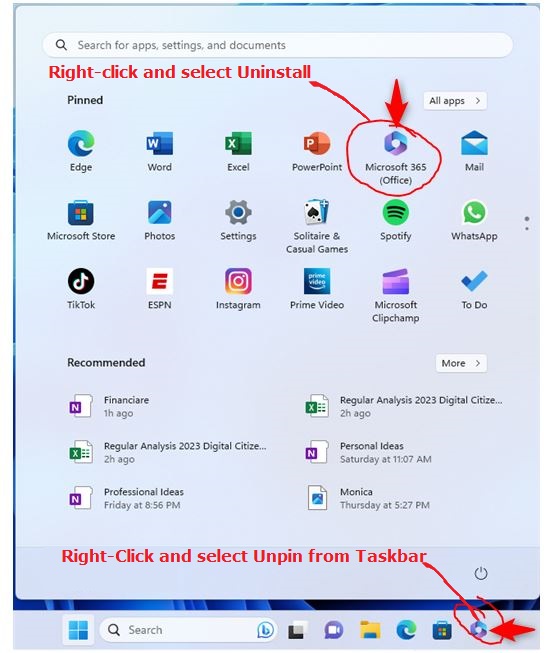
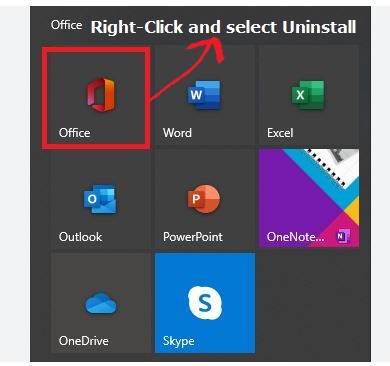
Still seeing Office? Follow Microsoft’s official manual uninstall guide
Install Office
Choose the right download for your PC.
This Office 2021 Professional Plus package includes both 32-bit and 64-bit installer folders. Confirm your Windows system type first so you know which folder to open after extracting the download.
Open Settings → System → About and look for “System type”.
Download the combined 32/64-bit installer
Office 2021 Professional Plus
A valid Office 2021 Professional Plus licence is required for activation.
After the download finishes
- 01Extract the ZIP folder
Right-click the downloaded file and choose Extract All.
- 02Open the extracted folder
Double-click start.bat to begin the installation.
- 03Wait, then restart
Keep the window open until setup completes, then restart your PC.
Watch video on how to set up Office 2021 Professional Plus
Activate your licence
Finish with your 25-digit product key.
Once Office is installed, activate it from any Office app. Make sure you use a valid key specifically for Office 2021 Professional Plus.
- 1
Open Microsoft Word or Excel.
- 2
Select Account from the side menu.
- 3
Choose Change Product Key.
- 4
Enter the key, then close and reopen the app.