Microsoft Windows Setup

How to setup Windows 11 step by step

 
How to Set Up Windows 11 Professional from Scratch or Upgrade from (Windows 11 Home > Professional / Enterprise)
 
Step 1: Check System Requirements:
 
Step 2: Download and Install Windows 11
 
Step 3: How to Activate your Windows 11
 
  • Freshly installed Windows 11 Professional
    1. Turn on the automatic update features if they are in the OFF position
      • Windows 10: Go to Start > Settings > Update & Security > Windows Update.
      • Windows 11: Go to Start > Settings > Windows Update.
    2. Click “Check for Updates” and make sure all pending updates are completed (Very Important)
    3. Restart you PC/Machine
    4. Open the Start Menu and go to Settings > System > Activation. Click Change product key, enter your 25-character code, and select Next followed by Activate.

  • Upgrading from Windows 11 Home to Professional or Enterprise edition.
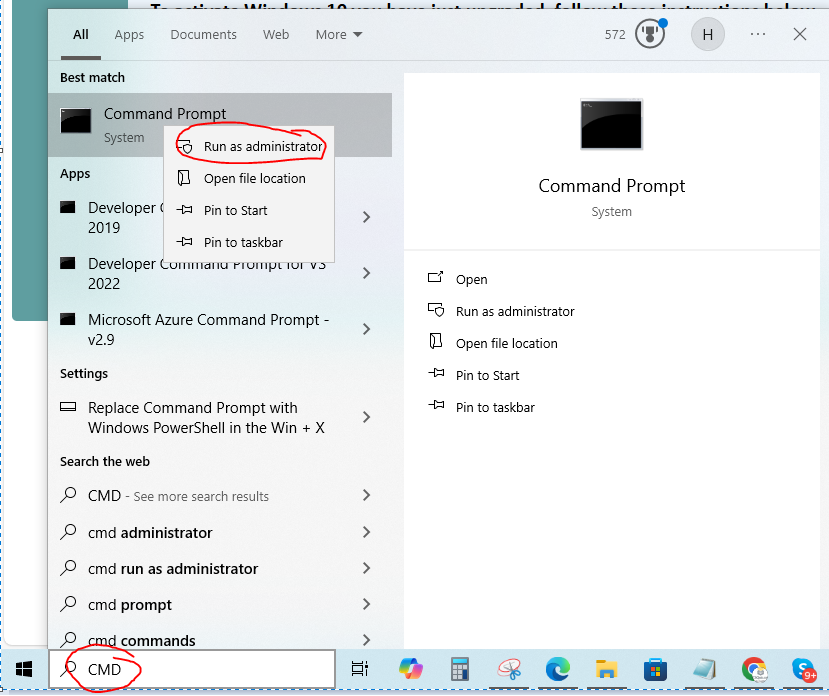
    1. Open an Administrator Command Prompt.
      • Type "CMD" in your Windows search and right-click on the Command Prompt window and select "Run as administrator"

    2. Apply the generic key below: Copy this exact script and paste into the CMD prompt and press Enter..
      • changepk.exe /ProductKey VK7JG-NPHTM-C97JM-9MPGT-3V66T
    3. Allow the system to restart and process the edition upgrade.
    4. Apply the original key received
How to upgrade from Windows 10 to 11
 
Step 1: Check System Requirements:
Step 2: Upgrade to Windows 11
  • Mode 1: Standard Over-The-Air Update:
    1. Ensure you have the latest updates by going to Settings > Update & Security > Windows Update and clicking Check for updates.
    2. If Windows 11 is available, a banner will appear stating "Upgrade to Windows 11 is ready
    3. Click Download and install. Your PC will restart and process the upgrade in the background
  • Mode 2:Manual Upgrade using Installation Assistant
    1. Navigate to the https://www.microsoft.com/en-us/software-download/windows11 page
    2. Locate the Windows 11 Installation Assistant section and click Download now
    3. Run the downloaded Windows11InstallationAssistant.exe file, review the license terms, and click Accept and install.
    4. The assistant will download necessary files and prompt you to restart when ready
Step 3: How to Activate your Windows 11
 
  • Freshly installed Windows 11 Professional
    1. Turn on the automatic update features if they are in the OFF position
      • Windows 10: Go to Start > Settings > Update & Security > Windows Update.
      • Windows 11: Go to Start > Settings > Windows Update.
    2. Click “Check for Updates” and make sure all pending updates are completed (Very Important)
    3. Restart you PC/Machine
    4. Open the Start Menu and go to Settings > System > Activation. Click Change product key, enter your 25-character code, and select Next followed by Activate.

  • Upgrading from Windows 11 Home to Professional or Enterprise edition.
    1. Open an Administrator Command Prompt.
      • Type "CMD" in your Windows search and right-click on the Command Prompt window and select "Run as administrator"

    2. Apply the generic key below: Copy this exact script and paste into the CMD prompt and press Enter..
      • changepk.exe /ProductKey VK7JG-NPHTM-C97JM-9MPGT-3V66T
    3. Allow the system to restart and process the edition upgrade.
    4. Apply the original key received

How to activate Windows 10 or 11 via Command Prompt:
Fresh download Windows 10/11 iso: