Other

test

How to Install Microsoft Office 2019 Professional Plus on Windows

Office 2019 Professional Plus · Windows

Install Office 2019
with confidence.

A clear, guided path from clean-up to activation—so you can get Word, Excel and the rest of Office running without the guesswork.

3
Simple steps
~15 min
Typical setup
10 & 11
Windows ready
Setup assistant Secure guide

Microsoft Office 2019 Professional Plus

Your clean install path

Follow each step in order for the smoothest installation.

  1. 01
    Prepare your PCRemove older Office versions
    Start
  2. 02
    Install OfficeChoose the correct download
  3. 03
    ActivateEnter your 25-digit key
Everything in one placeVideos, downloads and troubleshooting included.

Beginner friendly

About 15 minutes

Windows 10 & 11

No sign-in required

One guide. Three clear steps.
No technical jargon.

Start by removing older versions, install the correct edition for your PC, then activate with your valid product key.

A calm desktop workspace showing a completed software setup Ready when you are

A little preparation makes everything smoother.

Save your work, keep your licence key nearby and allow enough time for a restart. Then follow the steps below in order.

  • 01
    Save and close your filesClose Word, Excel, Outlook and other Office apps.
  • 02
    Keep your product key readyYou will need the valid 25-digit key in the final step.
  • 03
    Use a stable internet connectionDo not turn off your PC while Office is installing.
Step 01

Prepare your PC

Remove any existing Office versions.

This is the most important step. Existing Microsoft 365 or older Office files can interrupt the new installation and cause activation problems.

1
Open Windows Settings

Go to Apps, then Installed apps or Apps & features.

2
Find every Office entry

Remove Microsoft 365, Office trials and older Office editions.

3
Restart your PC

Let Windows clear any remaining installation files.

New PC? Check for the Microsoft 365 trial.

Many new computers include a trial version. Remove it even if you have never opened it.
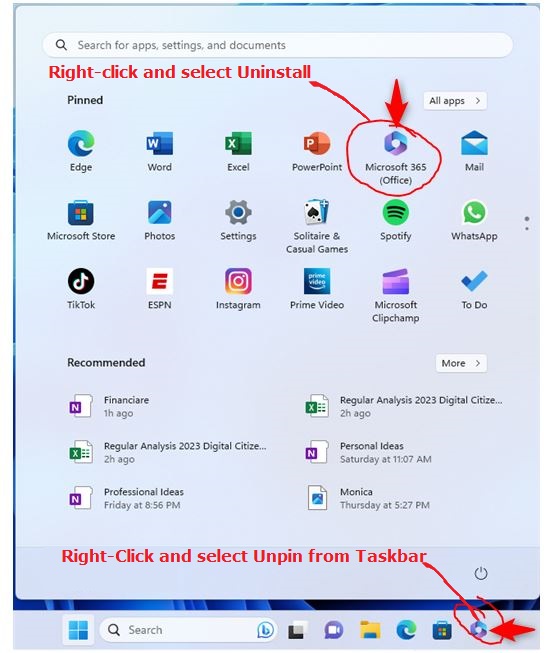
Windows 11 Start menu showing the Microsoft 365 app to uninstall
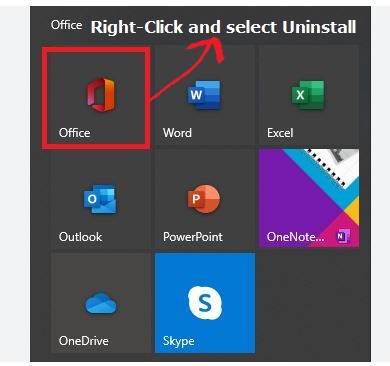
Windows app menu showing Office apps that can be uninstalled
Right-click any remaining Office or Microsoft 365 icons and choose Uninstall.
Step 02

Install Office

Choose the right download for your PC.

This Office 2019 Professional Plus package includes both 32-bit and 64-bit installer folders. Confirm your Windows system type first so you know which folder to open after extracting the download.

Check your system type

Open Settings → System → About and look for “System type”.

Official setup file

Download the combined 32/64-bit installer

Office 2019 Professional Plus

A valid Office 2019 Professional Plus licence is required for activation.

After the download finishes

  1. 01
    Extract the ZIP folder

    Right-click the downloaded file and choose Extract All.

  2. 02
    Open the extracted folder

    Double-click start.bat to begin the installation.

  3. 03
    Wait, then restart

    Keep the window open until setup completes, then restart your PC.

Watch video on how to set up Office 2019 Professional Plus

Step 03

Activate your licence

Finish with your 25-digit product key.

Once Office is installed, activate it from any Office app. Make sure you use a valid key specifically for Office 2019 Professional Plus.

  1. 1

    Open Microsoft Word or Excel.

  2. 2

    Select Account from the side menu.

  3. 3

    Choose Change Product Key.

  4. 4

    Enter the key, then close and reopen the app.

Watch a video on how to activate Office 2019 Professional Plus

You’re all set.

Open Word, Excel or PowerPoint and start working. If activation does not refresh immediately, restart your PC once more.

A little extra clarity,
right when you need it.

01Should I choose the 32-bit or 64-bit installer?

The download contains both installer folders. After extracting it, most modern Windows PCs should use the 64-bit folder. To confirm, open Settings, select System, then About, and check the System type field.

02Why do I need to remove my existing Office version first?

Older Office or Microsoft 365 installations can conflict with Office 2019 files, shortcuts and licence settings. A clean uninstall reduces the chance of activation errors and duplicated applications.

03What if Office icons remain after uninstalling?

Right-click each remaining Office icon and choose Uninstall. If that does not clear the old installation, use Microsoft’s official manual uninstall instructions linked in Step 1.

04Where do I enter my 25-digit product key?

Open Word or Excel, choose Account, select Change Product Key, then enter your valid 25-character licence key. Close and reopen the app after activation.

Ready to get started?

A clean Office setup is only
three steps away.