Official package link
Download the supplied 32-bit and 64-bit installer bundle.
Microsoft Office Apps |
How to Setup Microsoft Publisher 2021 |
|
Microsoft Office Apps Install and activate Microsoft Publisher 2021Follow this streamlined guide to download the installation package, select the correct system architecture, install Publisher and activate your licence. Recommended before you begin Watch how to install Publisher 2021 and Microsoft 365 with one installerWe strongly recommend watching this short step-by-step video first. It shows each part of the installation on screen, making the process much easier to follow and complete with confidence. Watch the video on YouTubeOfficial package linkDownload the supplied 32-bit and 64-bit installer bundle. Choose the right versionMatch Publisher to your Windows and existing Office architecture. Activate securelyUse the genuine product key supplied with your purchase. Step-by-step instructions Download, install and activate PublisherComplete the following steps in order. Your existing documents remain stored on the computer and are not deleted by a normal Office installation. Download the installation packageSelect the download button and save the ZIP file somewhere easy to find, such as your Downloads folder. Microsoft Publisher 2021 StandaloneIncludes separate 32-bit and 64-bit installation folders Download ZIPExtract the ZIP fileRight-click the downloaded file and choose Extract All. Select a destination, then open the extracted folder. Select 32-bit or 64-bitOpen the folder that matches your Office architecture. Most modern computers use 64-bit Windows, but an existing 32-bit Office installation requires 32-bit Publisher.
Run the installationInside the correct architecture folder, right-click start.bat and select Run as administrator. Approve the Windows prompt and keep the computer connected to the internet until installation finishes. Enter your product keyOpen Publisher and select Account. When the activation window appears, choose I have a product key. Enter the 25-character key from your delivery email, then follow the on-screen instructions to activate Publisher. 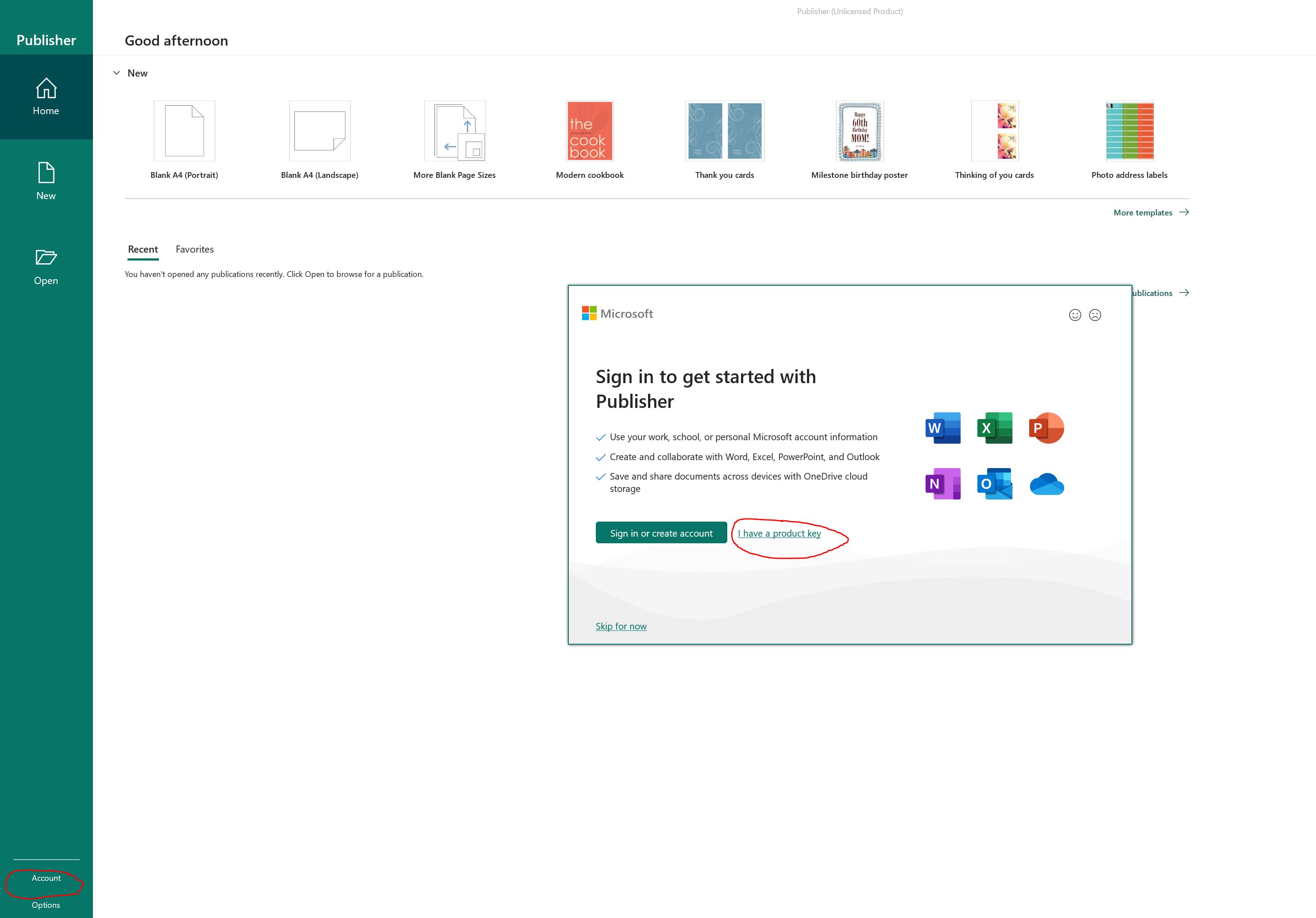 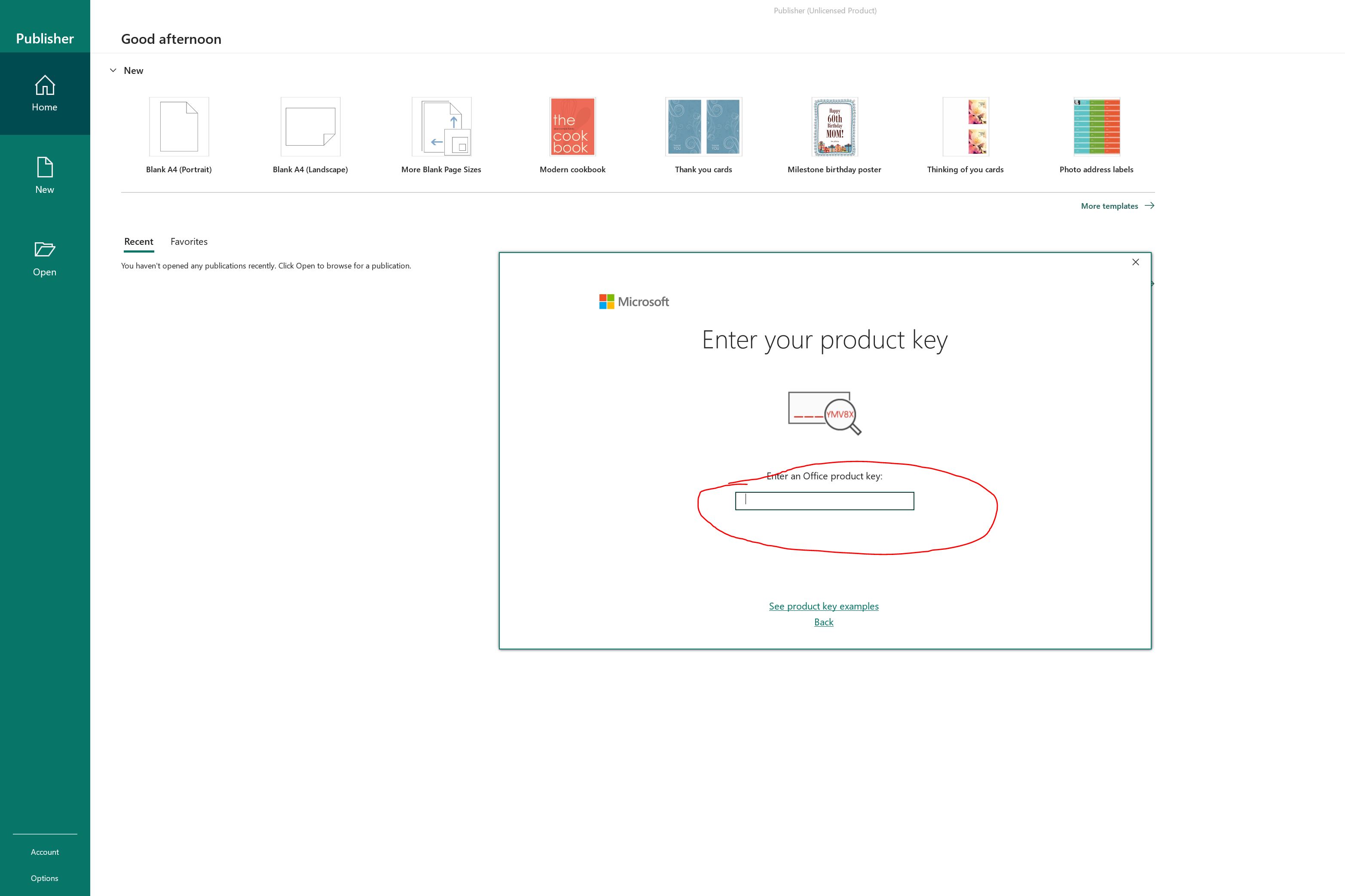 Confirm activationReturn to File → Account and verify that Publisher displays Product Activated. You can now open an existing publication or create a new one. Publisher opens without an activation prompt Account page shows Product Activated Install Microsoft 365 after PublisherOnce Publisher 2021 is activated, use the Microsoft account linked to your Microsoft 365 subscription. Open Microsoft 365Visit m365.cloud.microsoft/apps and sign in. Select Install appsChoose Install apps, then select Microsoft 365 apps. Download setupSave and open the downloaded OfficeSetup.exe file. Approve installationIf Windows asks for permission, select Yes and wait for setup to finish. Activate the appsOpen Word or Excel, accept the licence agreement and sign in with the same Microsoft 365 account. Important: Microsoft 365 must match Publisher's 32-bit or 64-bit architecture. Microsoft normally detects an existing Office architecture automatically. If setup asks you to uninstall Publisher or reports an incompatible Office product, cancel the installation and obtain a compatible Microsoft 365 deployment configuration. Install Publisher 2021 and Microsoft 365 with one installerAlready use Microsoft 365 (Office 365)? Download one installation package that installs Publisher 2021 first, pauses briefly, and then installs Microsoft 365 automatically. Publisher 2021 + Microsoft 365 combined installer Includes separate 32-bit and 64-bit installation options Download combined installer 1 Publisher 2021 Installs first 2 Microsoft 365 Starts automatically after a brief pause Uninstall existing Office applications If Publisher or Microsoft 365 (Office 365) is already installed, save your work and close all Office applications. Open Windows Settings → Apps → Installed apps, then uninstall both Microsoft Publisher and Microsoft 365/Office 365. Restart the computer before continuing. Download the installer Select the download button above and save Publisher_2021_and_Office_365.zip somewhere easy to find, such as your Downloads folder. Extract the ZIP file Right-click the downloaded ZIP file and select Extract All. Open the extracted folder, then choose the 32-bit or 64-bit version that matches your existing Office installation. Run as administrator Right-click START-INSTALLATION-64BIT.bat or START-INSTALLATION-32BIT.bat, then select Run as administrator. Select Yes if Windows asks for permission. Wait for both installations Publisher 2021 installs first. After it finishes, there will be a brief pause before Microsoft 365 starts automatically. Keep the installation window open and wait until both installations are complete. Activate Publisher 2021 Open Publisher 2021 and choose I have a product key. Enter the 25-character Publisher 2021 key supplied with your purchase, then follow the on-screen prompts to activate it. Sign in to Microsoft 365 Open Microsoft Word or Excel. From the left-hand menu, select Sign in and enter the email address and password associated with your Microsoft 365 subscription. Before you begin: Save your work, close all Office applications, keep the computer connected to the internet, and use the same 32-bit or 64-bit architecture for Publisher and Microsoft 365. Do not close the installation window during the brief pause between installations. Install Publisher 2021 if you already have Microsoft 365 installed but do not have Publisher. Publisher 2021 installer for an existing Microsoft 365 installation Use this package when Microsoft 365 is already installed without Publisher. Download Publisher 2021 installer Installation troubleshootingIf setup reports an incompatible Office product, do not force the installation or remove software unexpectedly. Confirm that all Office products use the same architecture and that your Publisher licence matches the installer. Save your work, restart Windows and try again with all Office applications closed. Use only a genuine Microsoft licence supplied by an authorised seller. Interface wording may vary slightly by Windows and Office build. |